How can BRO be moved to a desired transport position?
Find out how to save and access your favorite transport positions on your BRO.
For transporting BRO, you can save and access positions tailored to your car. Using the remote control mode, you will adjust the individual motors to bring BRO into the desired entry or transport position. Here is a short guide on how to save your transport position and retrieve it later.
Despite the guidelines, are you still unsure how to access or save your customized transport position? We are happy to help you. Just contact us at support@scewo.com or get in touch with one of our partners.
Warning
The remote control mode may only be used as long as no person is sitting on BRO.
Set and save transport position
Important
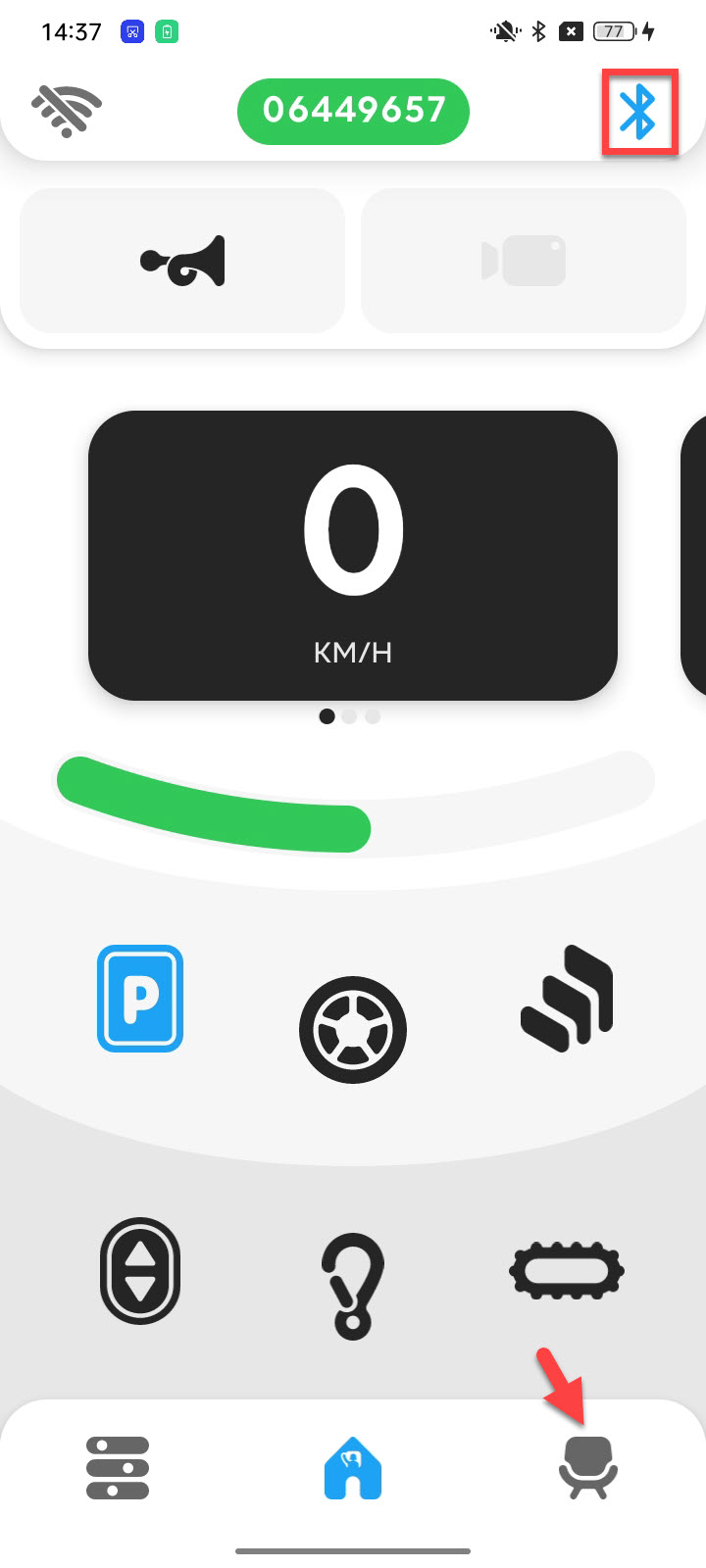
 Switch to park mode and transfer out of the wheelchair. Then, open the seat settings in the bottom bar of the app. Make sure your BRO is connected via Bluetooth. |
|
Important
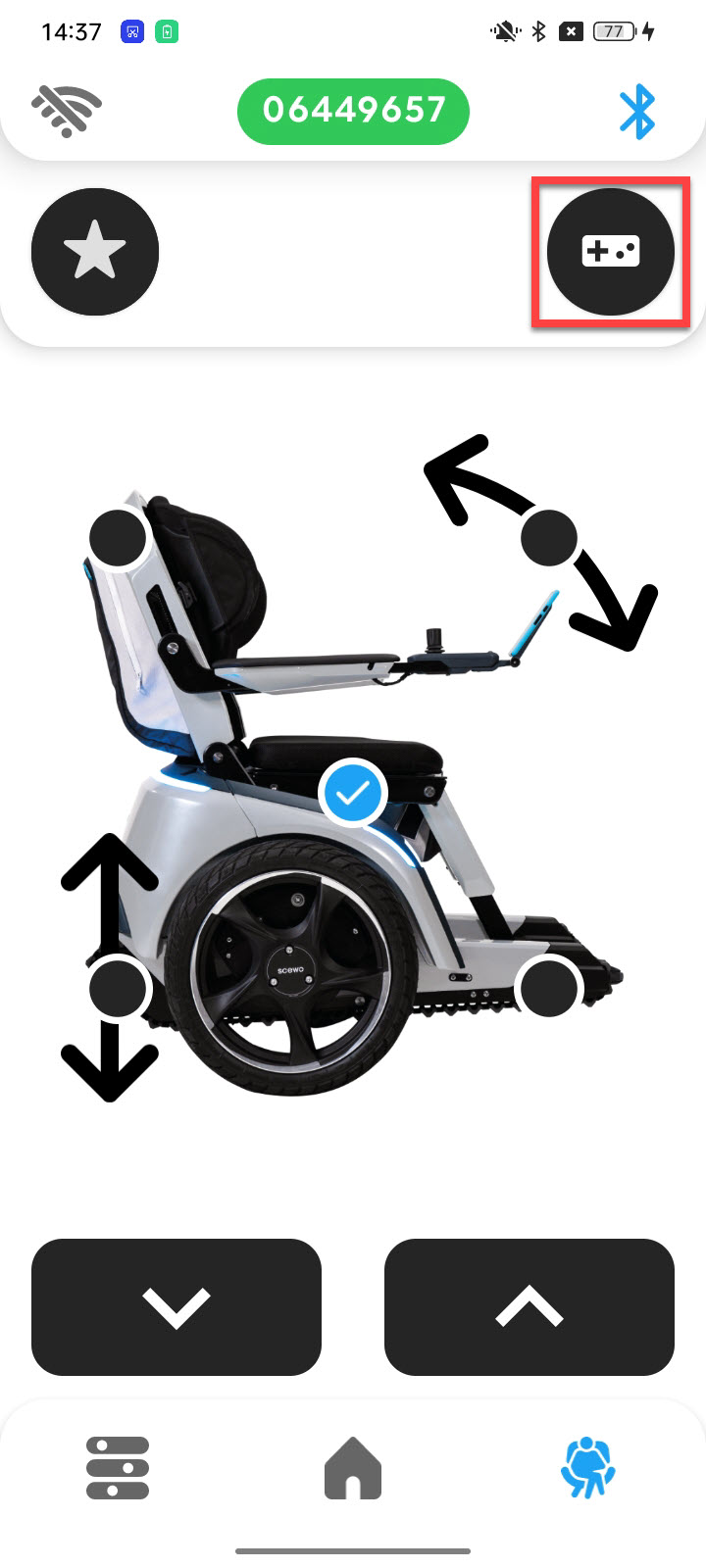
 Switch to remote control mode by clicking on the console icon in the top right corner. Before you adjust and configure the different motors, you must ensure that no one is sitting on your BRO and confirm this on the app. Once the remote control mode is active, the console icon in the top right corner will light up yellow. |
|
Important
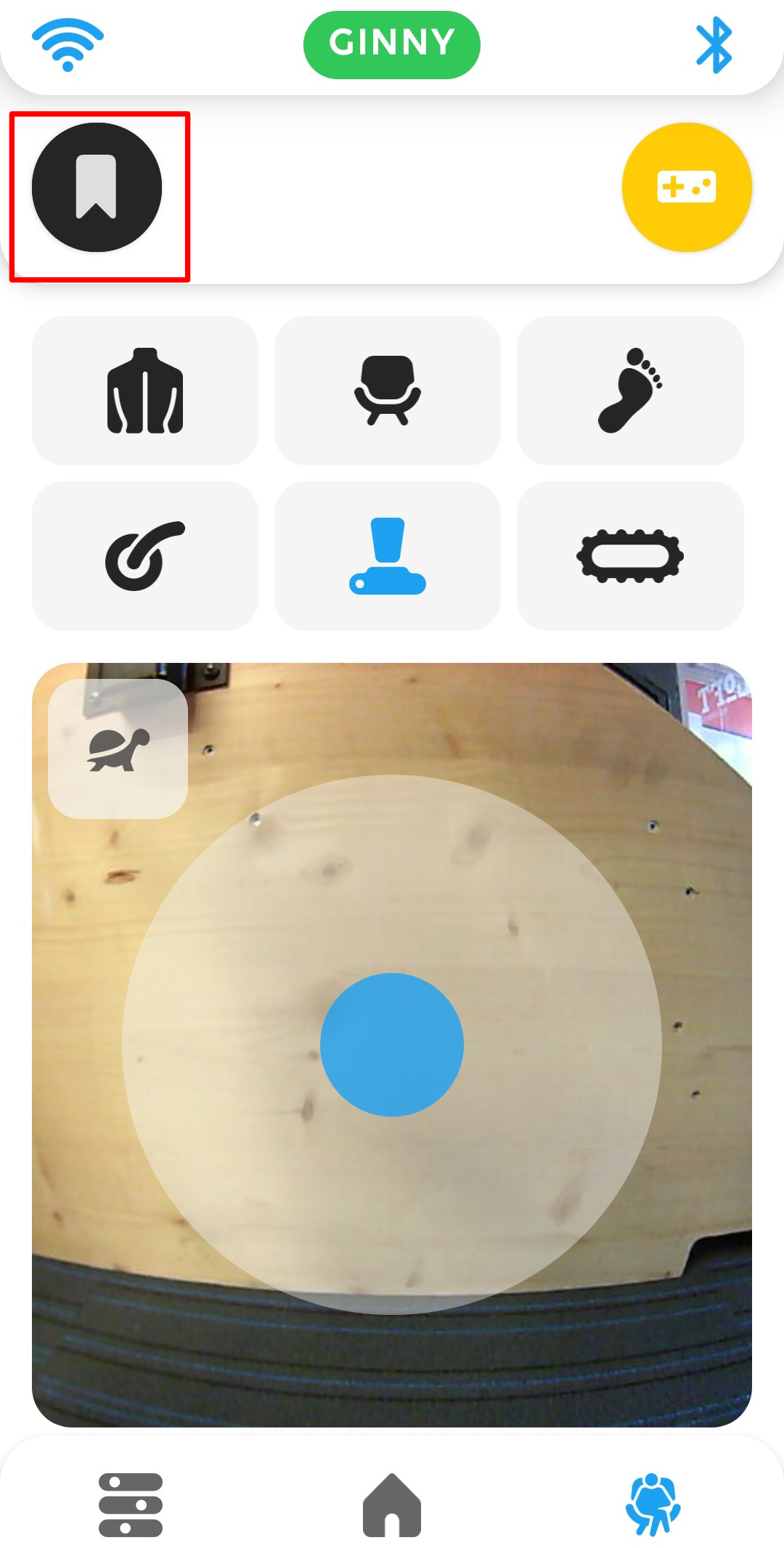
 Now you'll see an overview of the adjustable motors that you can configure in remote control mode. Tap on one of the six motors at the top to select it, then use the control (blue dot) at the bottom to make adjustments. The rearview camera displayed in the background will assist you. For more detailed instructions on how to operate the remote control mode, refer to the following guide. Once you've found a position that suits you, click on the bookmark icon in the top left corner. |
|
Important
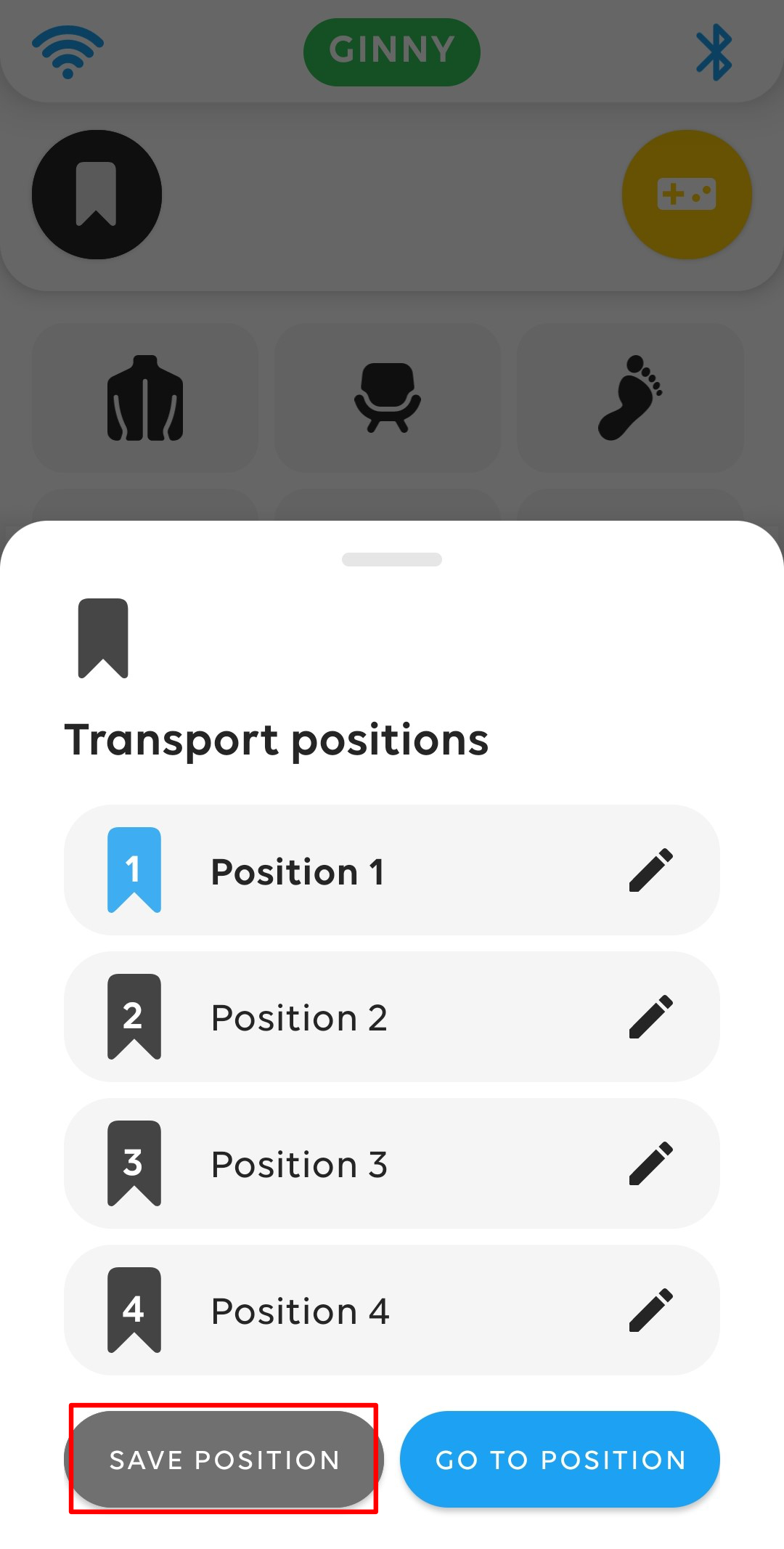
 You can save the current configuration under one of the undefined positions (in the image on the right, all positions are still undefined). Select one of these four positions and click "Save Position" in the bottom left corner. The newly saved position will then be available. It's best to rename the newly saved position right away to your preference by clicking on the pencil icon on the right and entering a name. |
|
Important
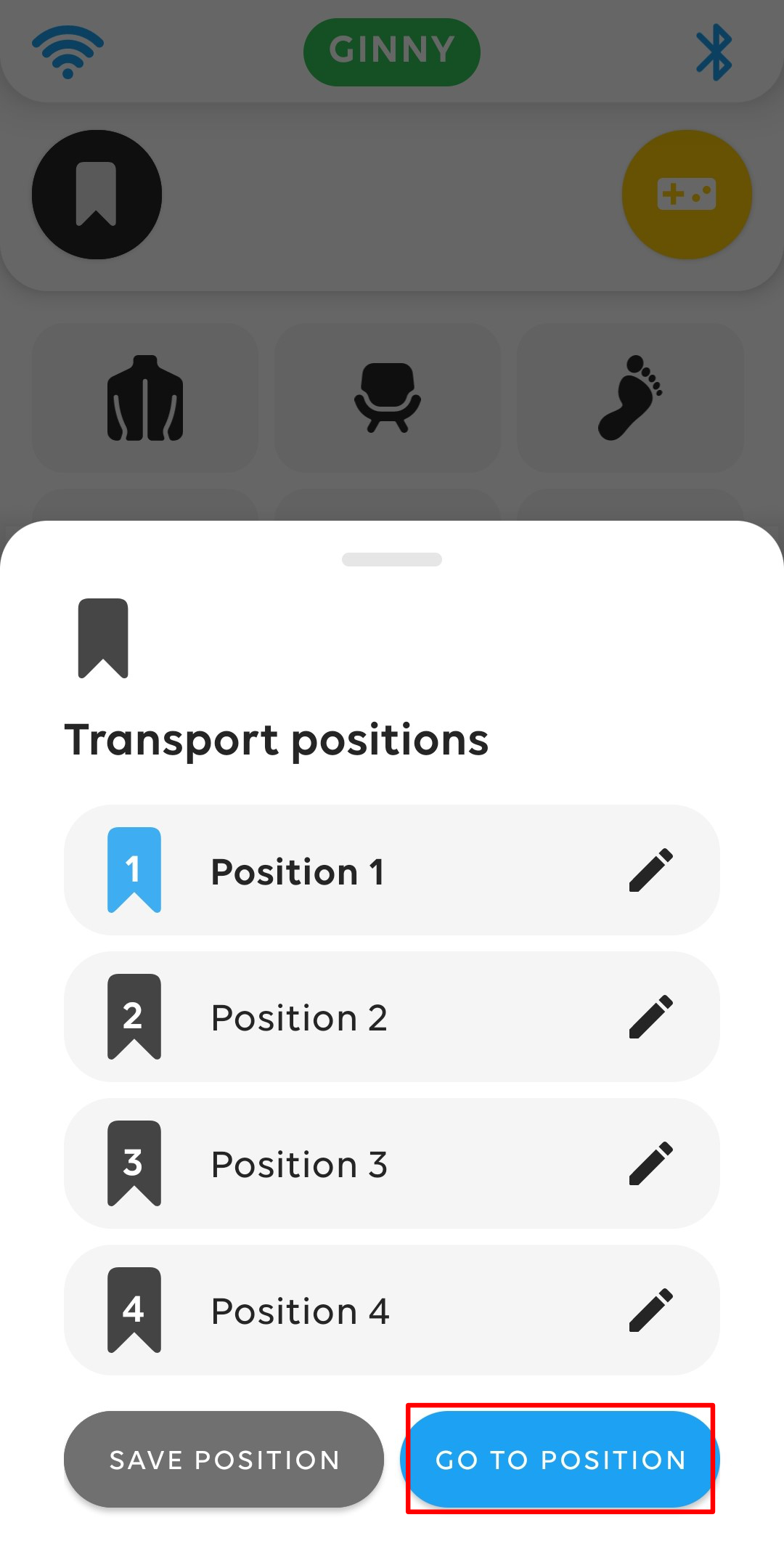
 The next time you want to move your BRO to a specific position for a smooth transport process, click on the bookmark icon to select from the available configurations. Your previously saved transport position will now appear as an option. To switch to your transport position, select the desired option so that the number on the left turns blue, then press and hold the "Go to Position" button until the transport position is reached and BRO stops moving. |
|
Overwriting transport positions
As soon as you overwrite an item, only the newly saved configuration is available under this selection and the old position is irreversibly overwritten.