How do I connect my BRO with the Scewo app?
This is how you connect the Scewo app to your BRO via WiFi and Bluetooth.
Are you still unsure or do you need further help? We would be happy to help you. Just contact us at support@scewo.com or get in touch with one of our partners.
Connect WiFi
Important
 Make sure that your BRO is turned on and the WiFi is turned on in your mobile phone settings. Start the Scewo BRO App. If you open it for the first time, you will be taken directly to the “Connect BRO” homepage. Otherwise, you can click on the BRO name at the top. | 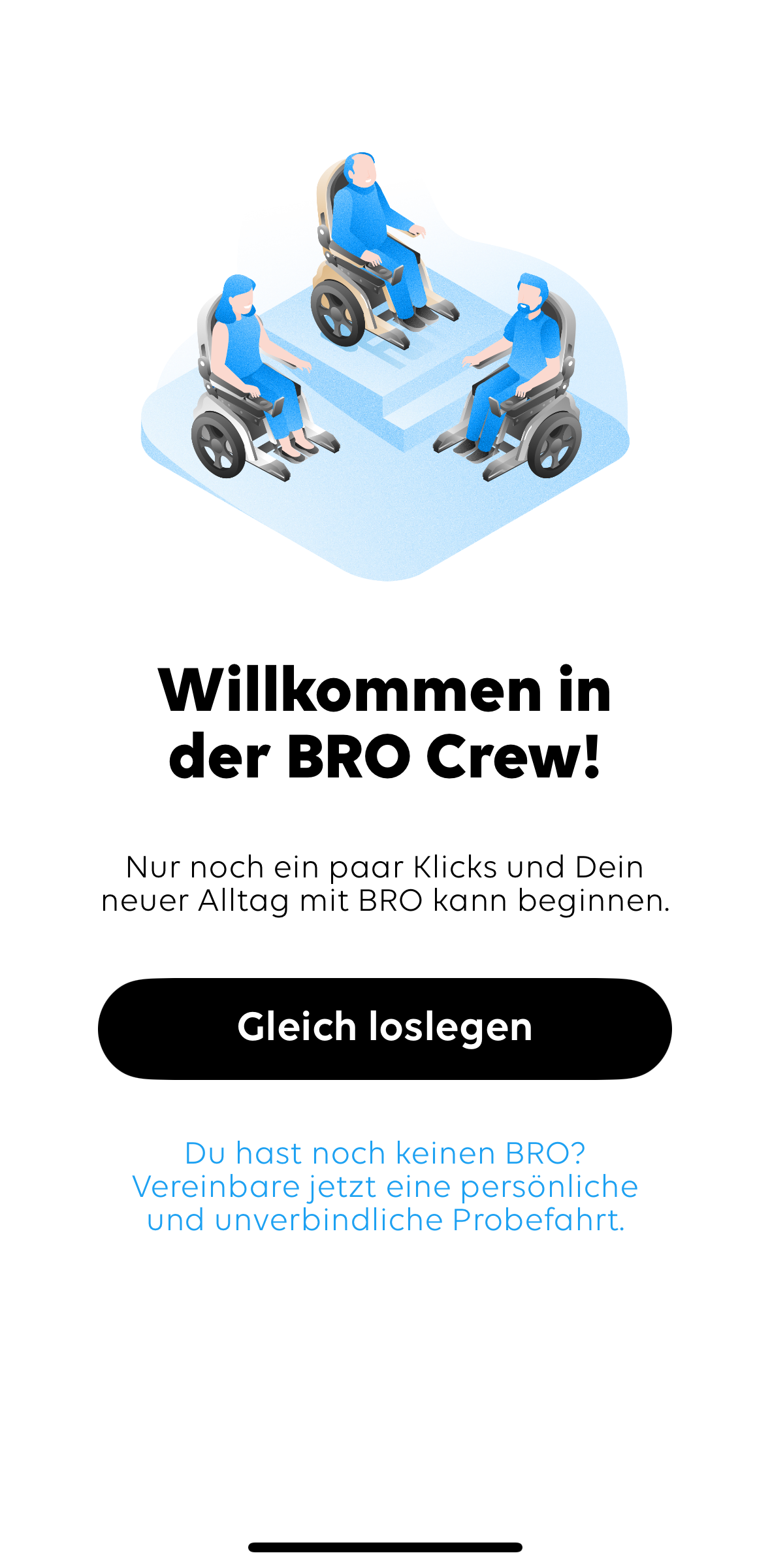 |
Important
 Enter the serial number of your BRO in the first input window (example: BR0000123). You can find the number on the name plate of your BRO. Attention: The serial number consists of several “0" (the number zero). There is no letter “O” in your BRO's serial number . Enter the password of your BRO in the lower input window (example: 12345678). This should be an 8-digit number and is listed on your BRO's card or maintenance booklet . Then press “Connect to BRO.” | 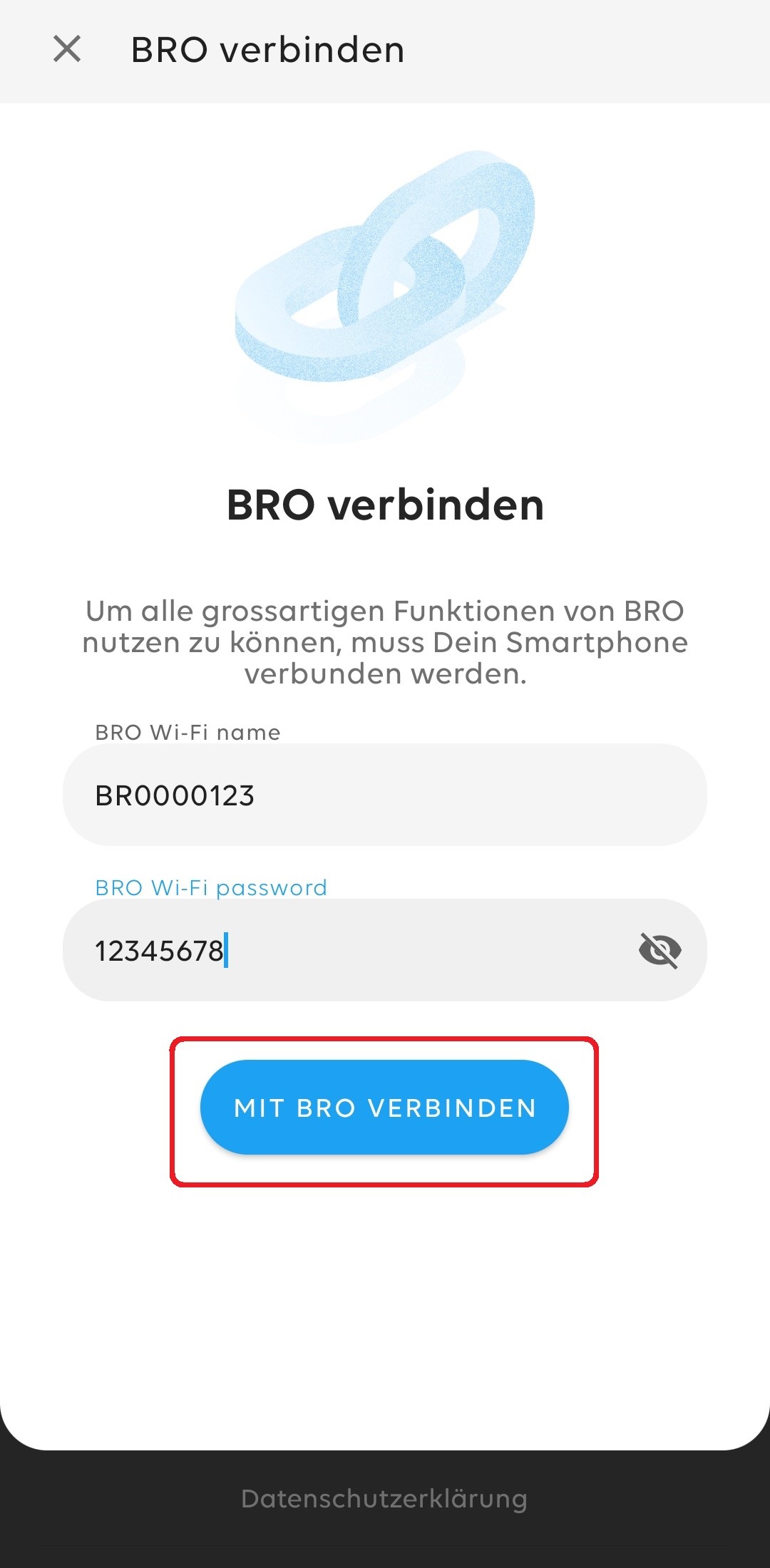 | 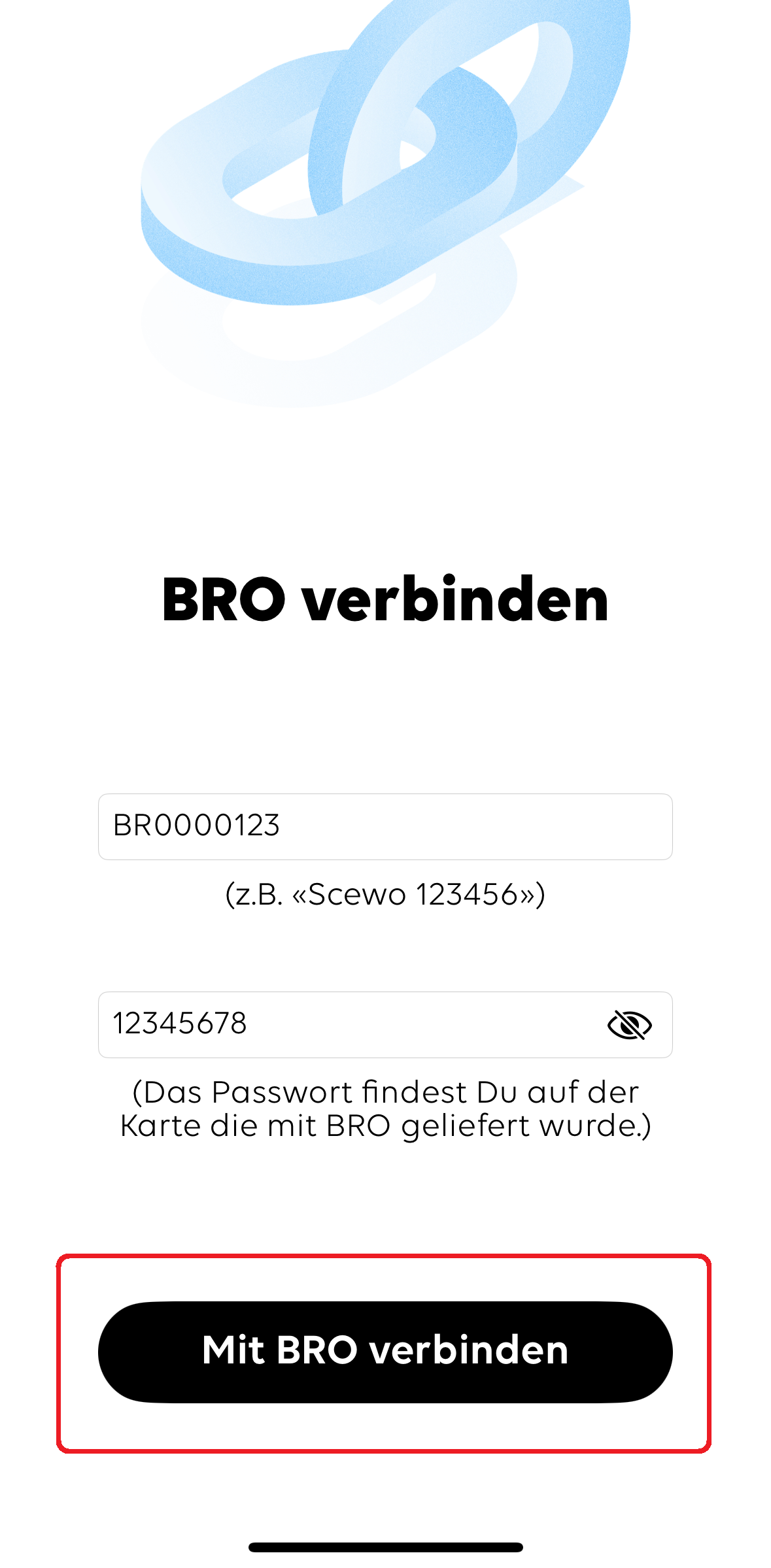 |
Important
 Press “Connect” in the pop-up window. Hint: If the connection fails, press “reconnect.” It is possible that a pop-up window appears which asks you to authenticate. In this case, hold down the menu button on the control panel for at least 5 seconds until the control panel starts to vibrate | 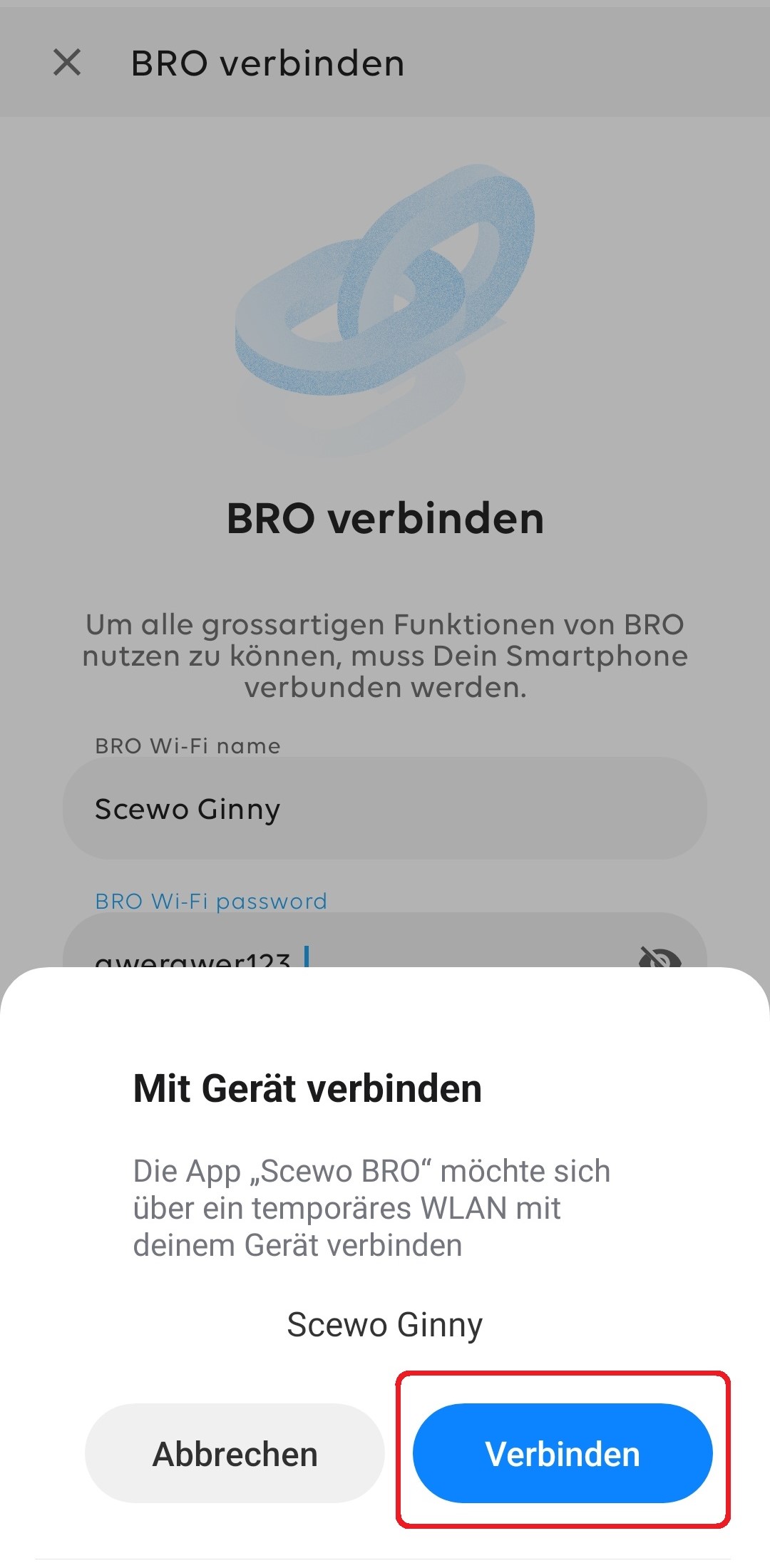 | 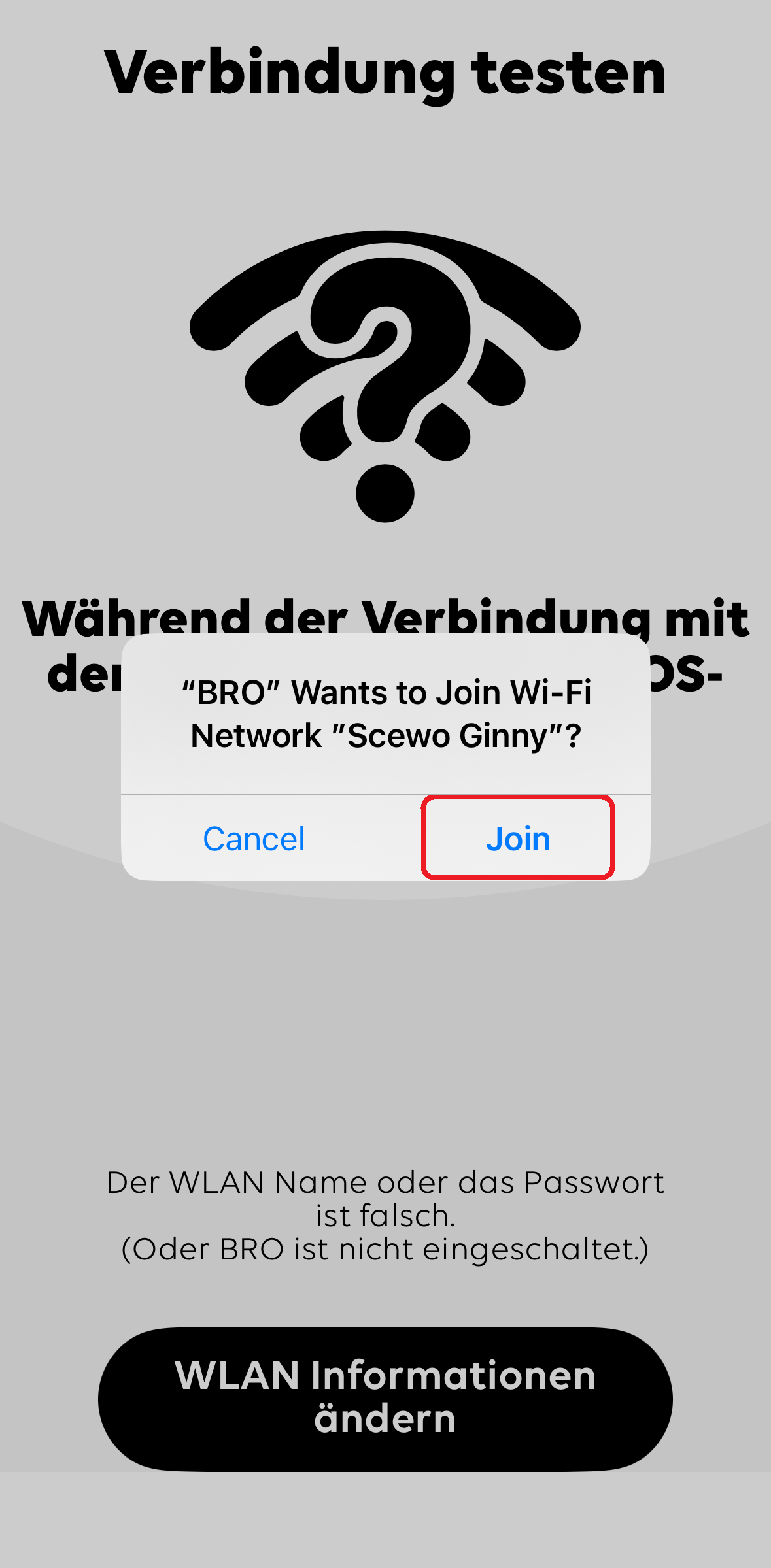 |
Important
 Make sure that the Wi-Fi icon on the top left of the screen is blue. Your app is then successfully connected to your BRO via WiFi. | 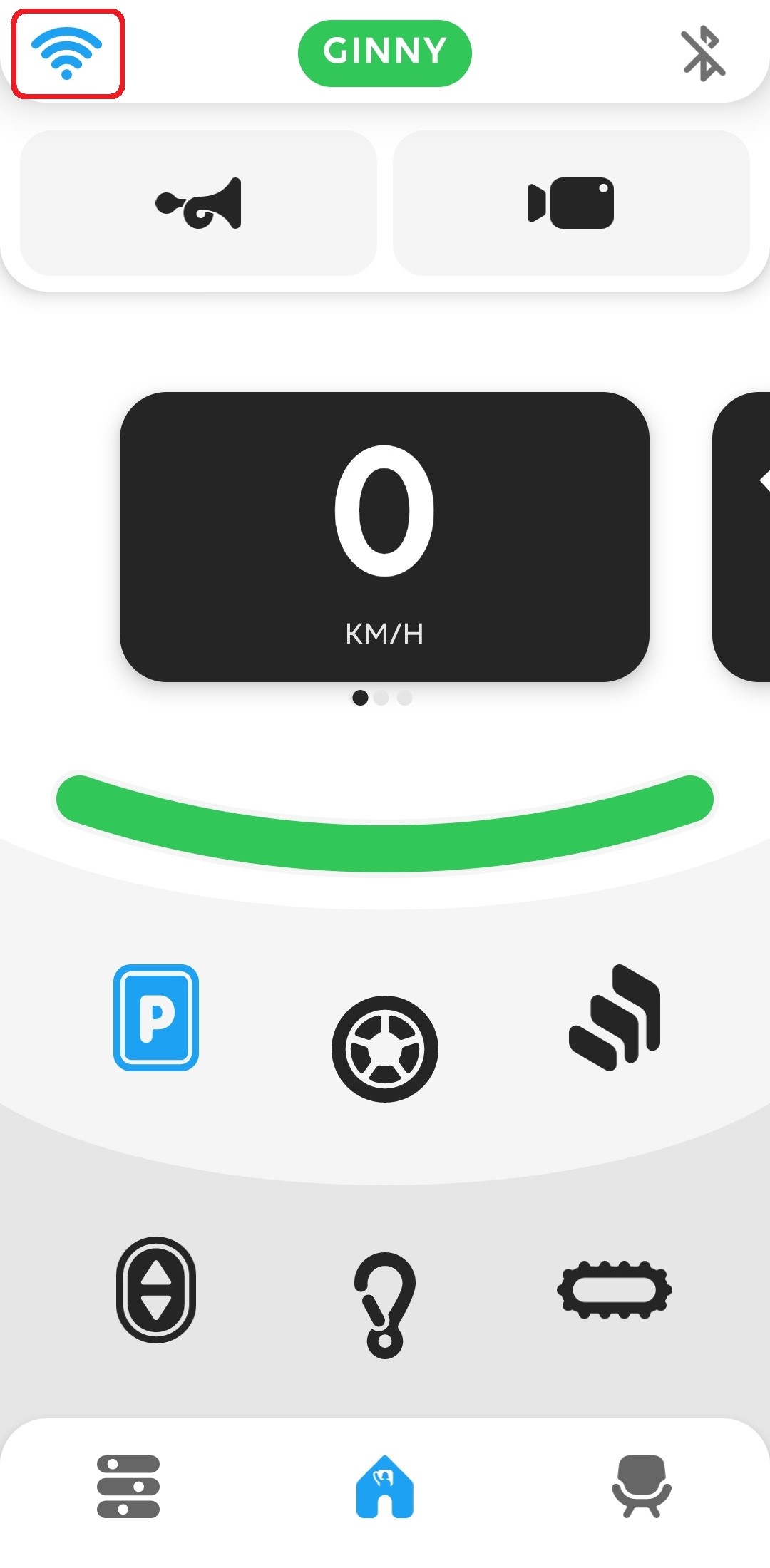 | 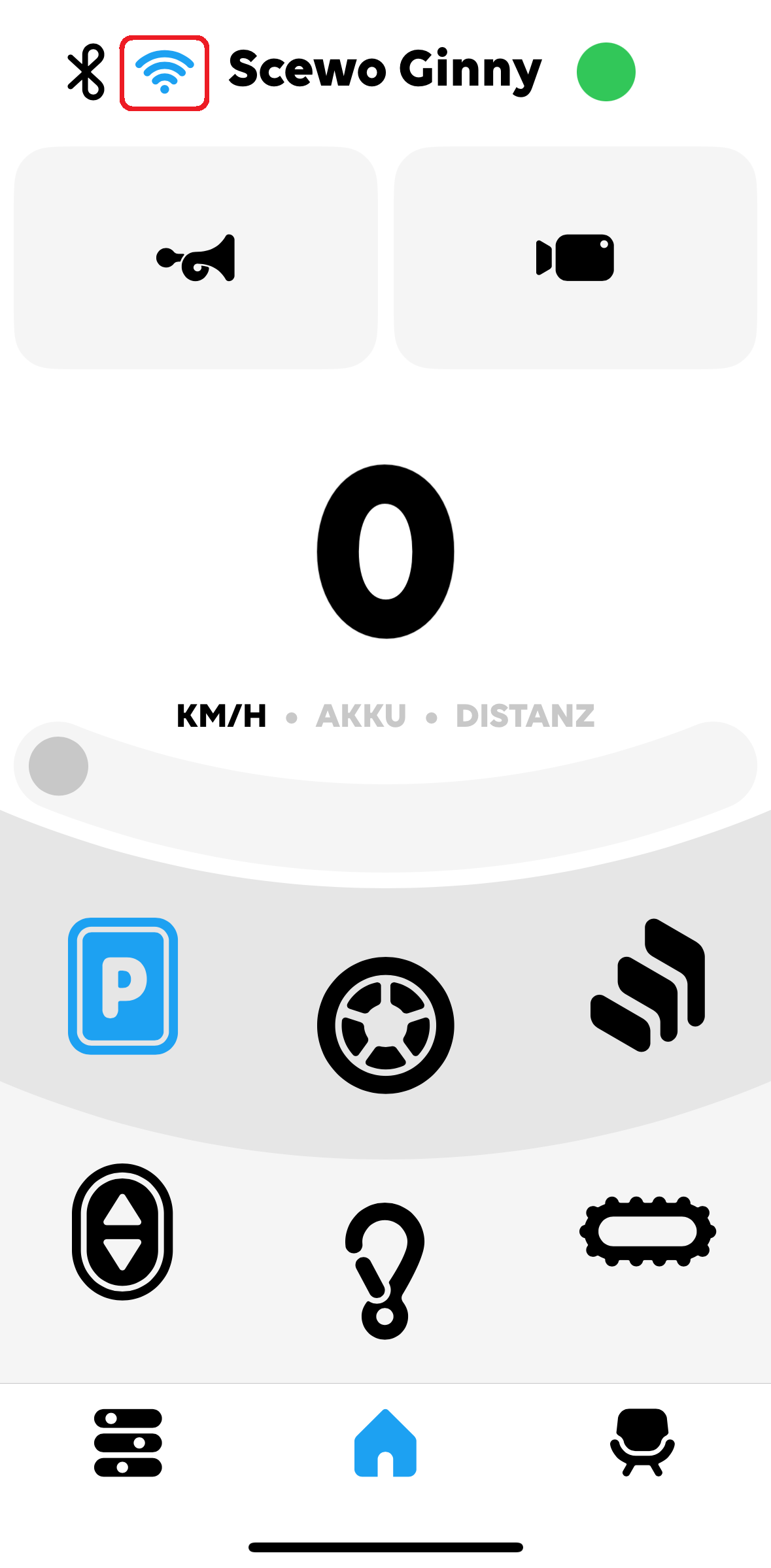 |
Connect Bluetooth
Important
Make sure that your BRO is switched on and is already successfully connected to the WLAN (red box at the top right of the picture). Bluetooth must also be switched on in your mobile phone settings . Press the Bluetooth icon (red arrow in the picture - can be at the top right or top left, depending on the operating system) . | 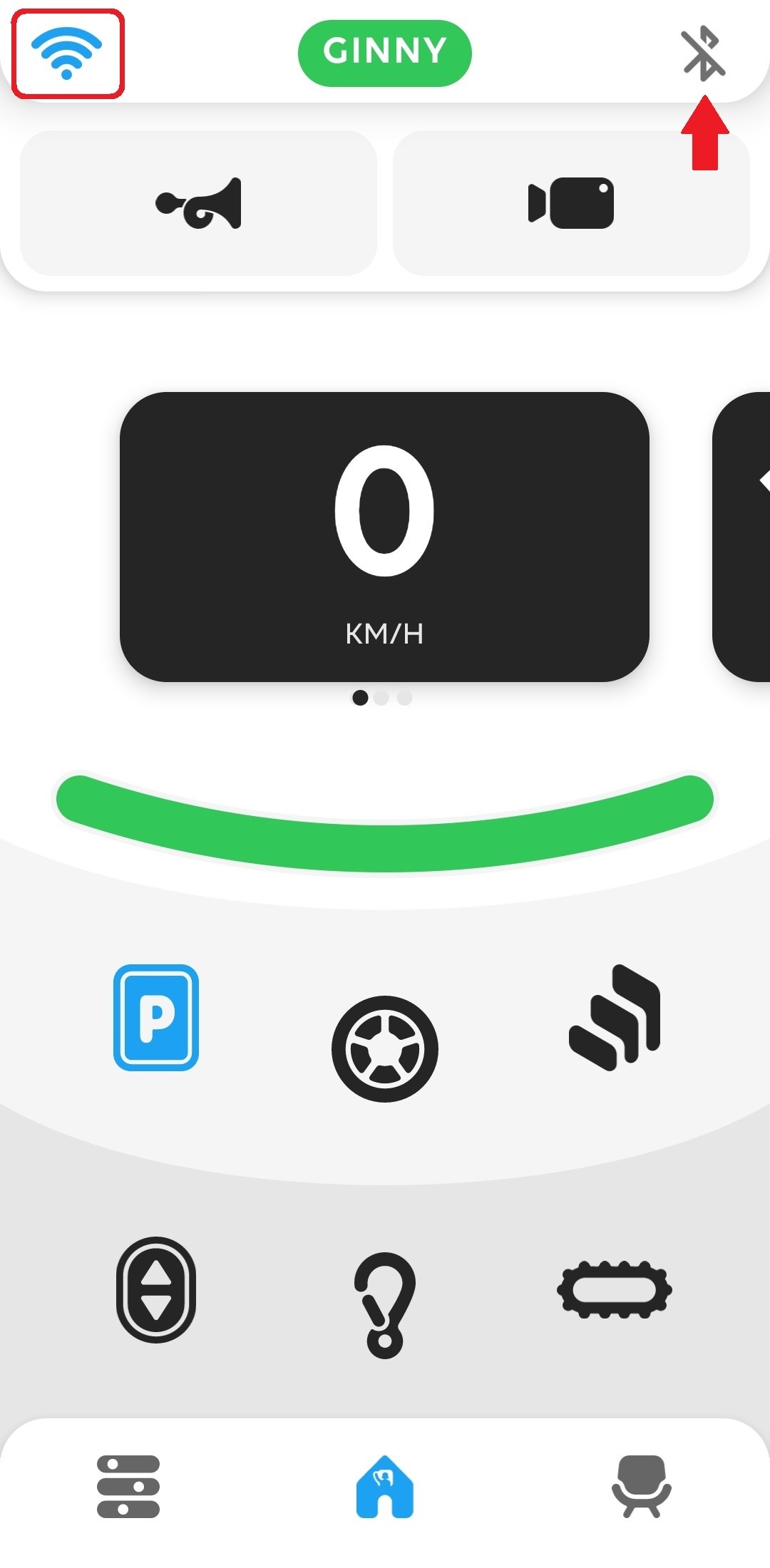 | 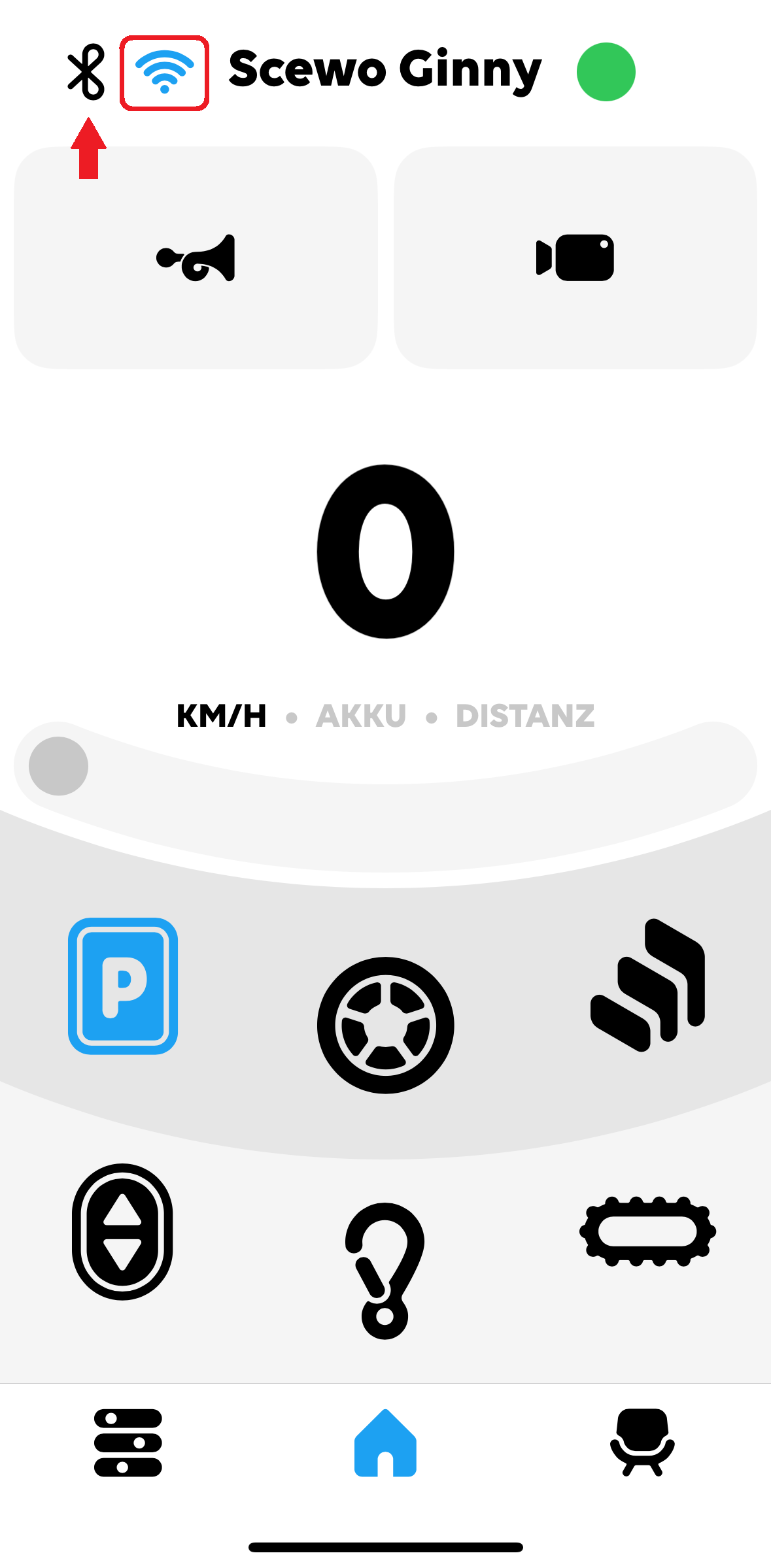 |
Important
iOS: Enter the code that appears above (red box in the image at the top right) into the pop-up window. Then press “connect” /"pair ". Android: Your app connects automatically. | 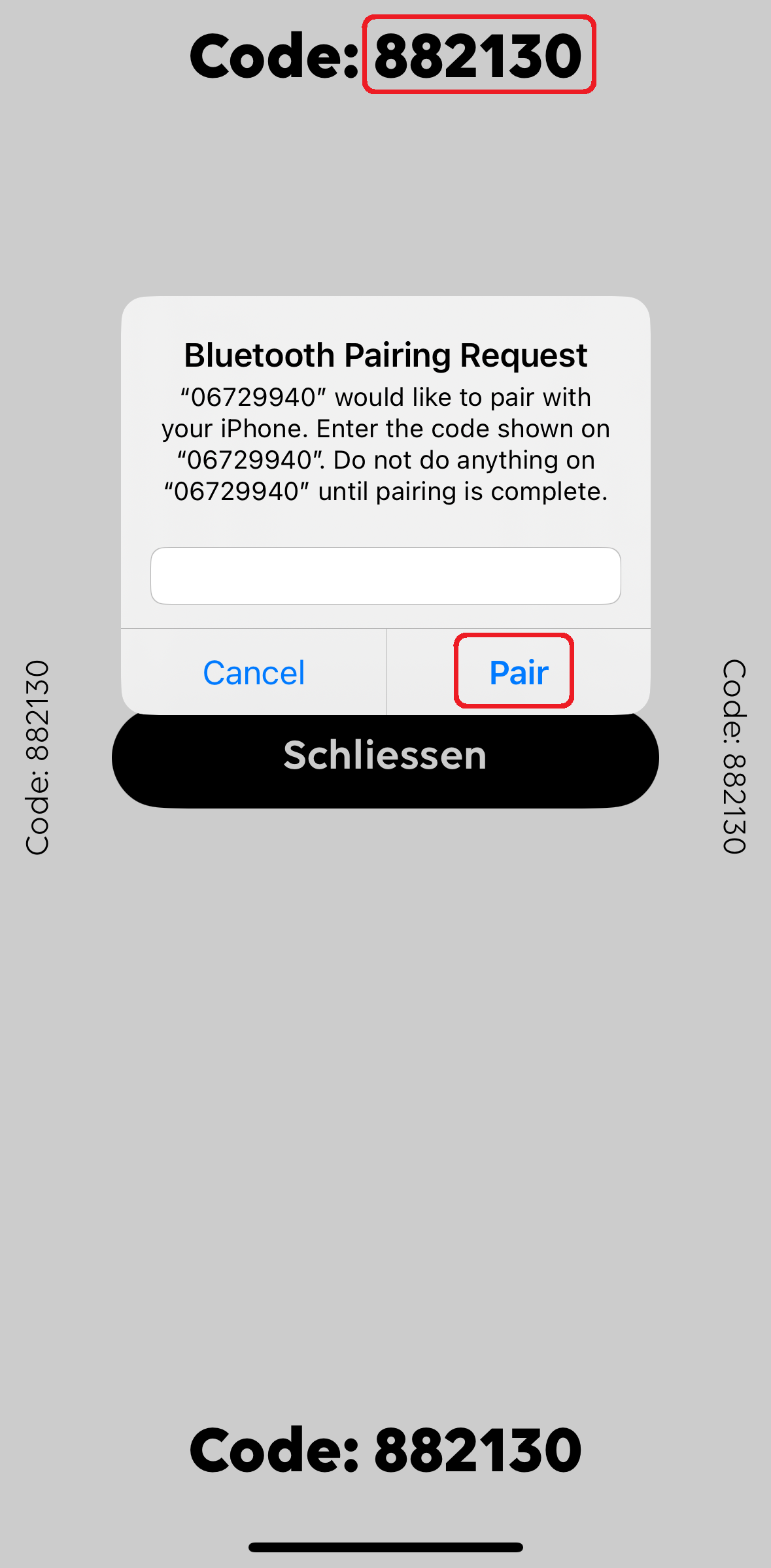 |
Important
Make sure the Bluetooth icon at the top is blue. Your app is then successfully connected to your BRO via Bluetooth. | 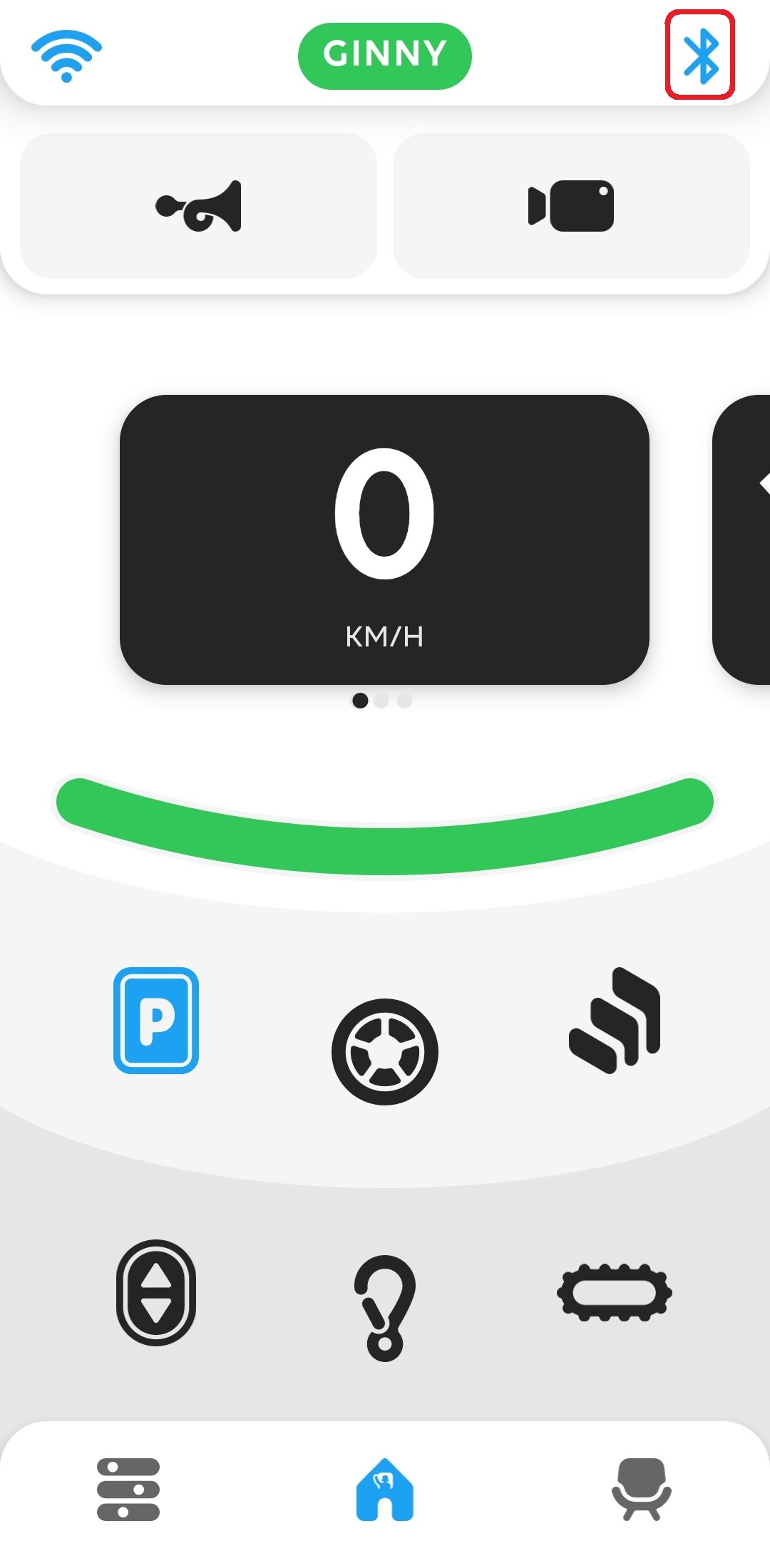 | 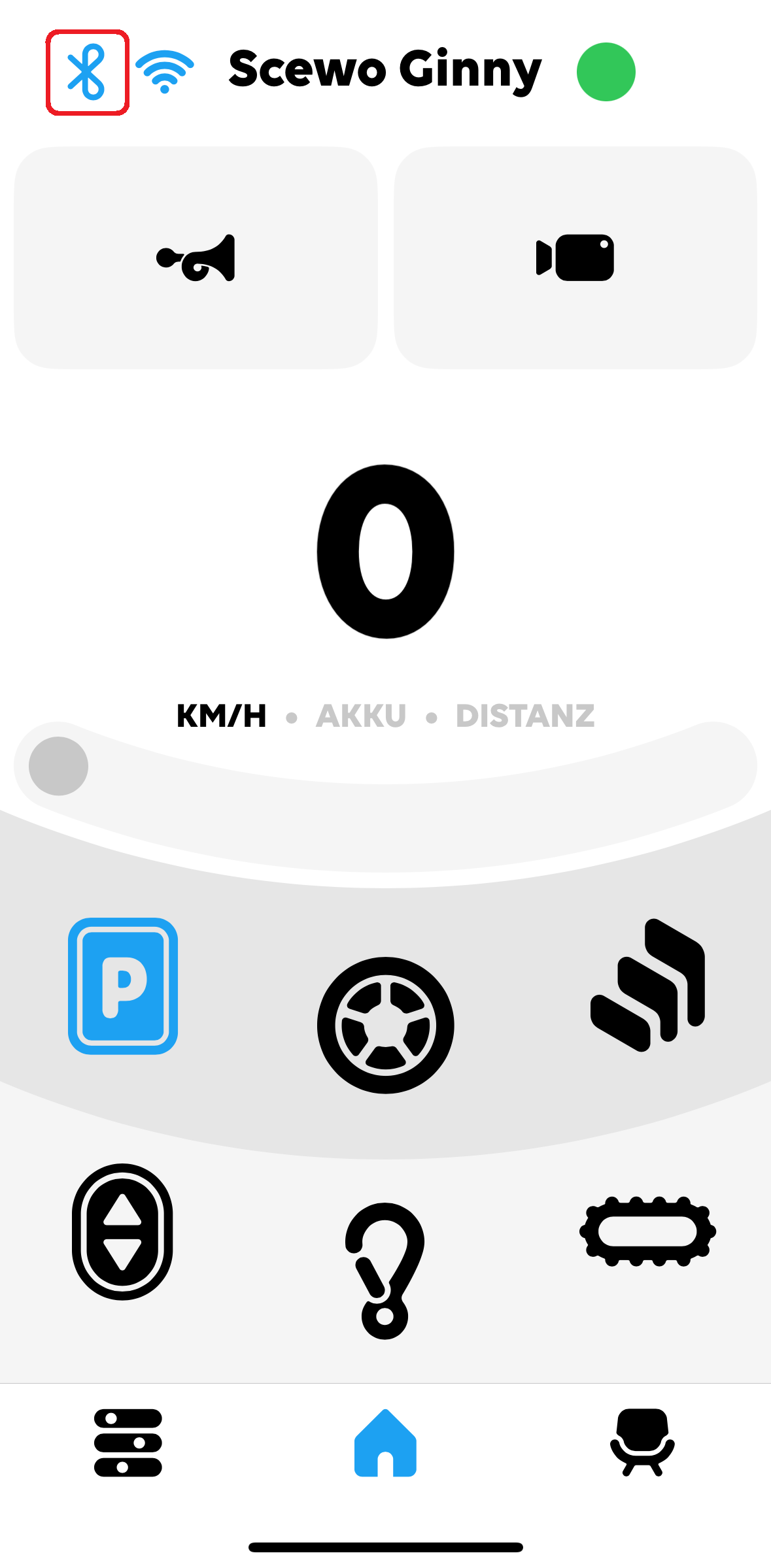 |
What to do if there is a connection problem?
If you have WiFi or Bluetooth connectivity issues, see the following guide: What to do if you have Wi-Fi or Bluetooth connection problems?